This makes an Android app of your own copy of Pokopia, on your Windows PC, and puts it on your phone or handheld with a USB cable. The game then runs on the phone by itself: you only need the PC again to update it.
Since 1.5.0 it's made with the "for Windows PCs" download and its app, Pokopia Native: Build → Android phone or handheld. (Up to 1.4.1 it was a separate beta download with its own builder window.)
It's a beta. It has been tested in Android's emulator on a PC, and a tester's phone passed the device test; it hasn't been played much on real phones yet. If something goes wrong, the report (at the end) tells us what happened.
Nothing of the game is in the download. Everything is made on your PC from your dump and stays on your PC and your phone. Please don't share the app your PC makes: it contains the game.
Can my phone run it?
Your phone or handheld needs:
- Android 11 or newer, on a 64-bit phone (almost every phone from the last five years).
- Recent graphics. In short: Snapdragon 8 Gen 1 or newer works (most flagship Android phones from 2022 on, and handhelds such as the AYN Odin 2). Snapdragon 865, 870, 855 and 765G don't work yet (for example the Retroid Pocket 5 and Mini, the Pixel 5). Phones with Mali graphics don't work yet: Google Pixel 6 to 9 and the Pixel 10a, most MediaTek Dimensity phones, and handhelds such as the Anbernic RG556 and RG477M. Their graphics lack the texture format the game's pictures are stored in (BC); support for them is being looked into. Samsung Exynos phones and the Pixel 10 haven't been tested: try the device test.
- 8 GB of memory or more (12 GB is better), and about 9 GB of free space.
The easy way to know: the device test. It's a small app with no game inside. It checks your phone in a few seconds and tells you whether it can run Pokopia Native. (The app's Android page has it as step 1, Check your phone: Open the check opens the same page on your PC.)
- On your phone, open pokopia-native.vercel.app/download/android-check and download the device test (pokopia-native-device-test.apk).
- Open it from your downloads. If the phone asks whether to allow installing apps from your browser or files app, allow it. If Play Protect warns about an unknown app, tap More details, then Install anyway (the app isn't from the Play Store, that's all).
- Open Pokopia Native. After a moment a box says whether the phone is ready:
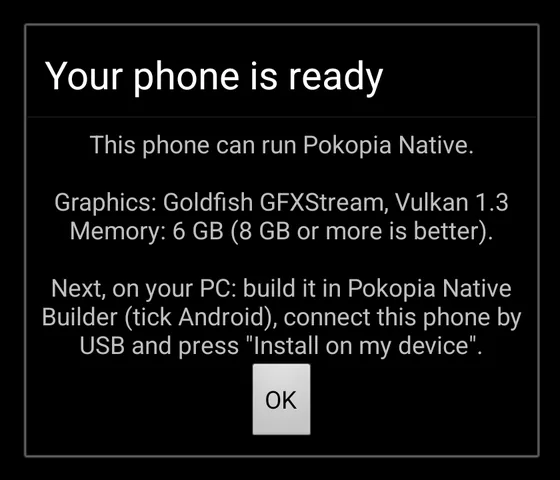
If it says the phone can't run it yet, the box says why. Paste the report it put on your clipboard into the Discord or the report form: we'd like to know which phones need what. You don't need to uninstall the test: installing the game replaces it.
What you need on your PC
- A Windows 10 or 11 PC (64-bit) with about 25 GB free.
- Pokopia Native for Windows:
Pokopia-Native-for-Windows.zip.
Unzip it into a folder of its own, outside Documents, Desktop and Downloads (for example
C:\Games\Pokopia Native). Python, .NET and the game's tools come in it, with the Android parts (windows\bin\android); nothing else to install for them. - Your dump of the game with its update (2.0.1:
updates/655360; 1.0.5 works too), as for the Windows game. - Google's Platform-Tools: Google's small tool that lets a PC put apps on a phone over USB (its program is called "adb"). The app's
Android page has Get Platform-Tools, which opens Google's own page
(developer.android.com/tools/releases/platform-tools): download "SDK
Platform-Tools for Windows", right-click the zip → Extract All…, and extract it into your Pokopia Native folder, so that a folder
called
platform-toolssits next topokopia-native.exe. (Leaving it in your Downloads folder works too.) Some phones also need their maker's USB driver. - Python's cryptography package, which signs the Android app. If Build for Android stops saying it's missing, see Questions.
Step 1: Build the app
- Open
pokopia-native.exeand do the first run, if you haven't yet: it finds your game files, checks your PC and builds the game for this PC (the Windows guide). The Android app is made from the same game files. - In the app, go to Build, and under Other devices, Android phone or handheld → Set up Android.
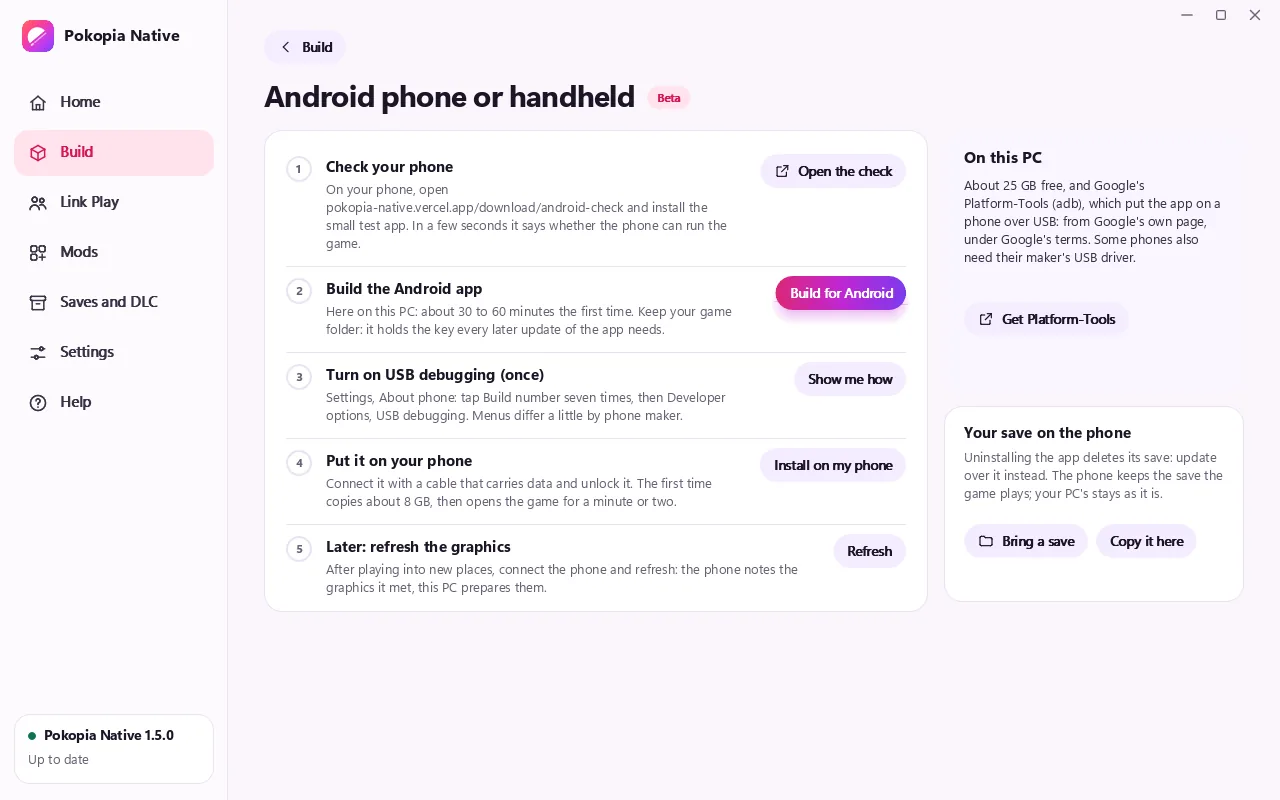
- Step 2, Build the Android app → Build for Android. It builds on the same Building screen as the PC game, with the time left. The first build takes about 30 to 60 minutes; you can keep using your PC (and the rest of the app). If you stop it, building again carries on where it stopped.
Keep your build folder (the app's Build → Game folder). It holds a key file (android\signing-key.pem) that every later update
of the app needs. Without it, an update means uninstalling the app first, and that deletes your save.
Step 2: Turn on USB debugging on your phone (only once)
USB debugging is a setting that lets your PC install apps on your phone over the USB cable. It's in a hidden menu called Developer options, which you unlock by tapping your phone's build number seven times. Nothing else on your phone changes, and you can turn it off again after installing. (Step 3 on the app's Android page, Show me how, opens this guide.)
Find your phone below. Menu names can differ a little between Android versions; if you can't find one, type build number (then USB debugging) into the search box at the top of Settings.
| Phone | 1. Unlock Developer options | 2. Turn on USB debugging |
|---|---|---|
| Samsung Galaxy | Settings → About phone → Software information → tap Build number 7 times | Settings → Developer options (at the very bottom) → USB debugging |
| Google Pixel | Settings → About phone → tap Build number (at the bottom) 7 times | Settings → System → Developer options → USB debugging |
| Xiaomi, Redmi, POCO | Settings → About phone → tap OS version (HyperOS) or MIUI version 7 times | Settings → Additional settings → Developer options → USB debugging, and also Install via USB |
| OnePlus, OPPO, realme | Settings → About device → Version → tap Build number 7 times | Settings → System (or Additional settings) → Developer options → USB debugging |
| Motorola | Settings → About phone → tap Build number 7 times | Settings → System → Developer options → USB debugging |
| Handhelds (AYN, Retroid, AYANEO and others) | Settings → About (phone, tablet or handheld) → tap Build number 7 times | Settings → System → Developer options → USB debugging |
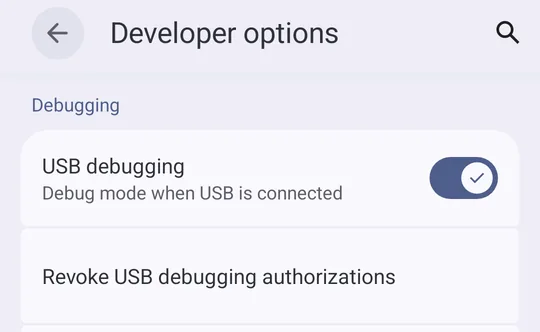
The phone may ask for your PIN, and then says "You are now a developer". In Developer options, it looks like this:
Step 3: Put it on your phone
- Connect the phone to your PC with a USB cable that carries data (some cheap cables only charge), and unlock the phone.
- On the app's Android page, step 4, Put it on your phone → Install on my phone.
- The first time, the phone asks "Allow USB debugging?". Tick Always allow from this computer and tap Allow. (If you missed it, unplug the cable, plug it in again, and press Install again.)
- If the phone shows a Play Protect message, tap More details, then Install anyway.
- Wait. The first time copies about 8 GB of the game's files to the phone: a few minutes. Keep the phone connected and unlocked.
- The first time only, the app then opens Pokopia Native on your phone for a minute or two to prepare the graphics of its first screens (until then the screen stays black behind the touch controls). Keep the phone unlocked and leave it be: the game is closed again when it's done.
The box under On this PC shows what it's doing, and says Done. at the end: then you can unplug the cable. Installing again later (after an update) copies only what changed.
Step 4: Play
Open Pokopia Native on your phone. The first start takes a few minutes before the title screen; later starts are quicker.
- Touch controls show on the screen: both sticks, the D-pad, A B X Y, L R ZL ZR, − and +, and a menu button at the top. A finger anywhere else touches the game itself.
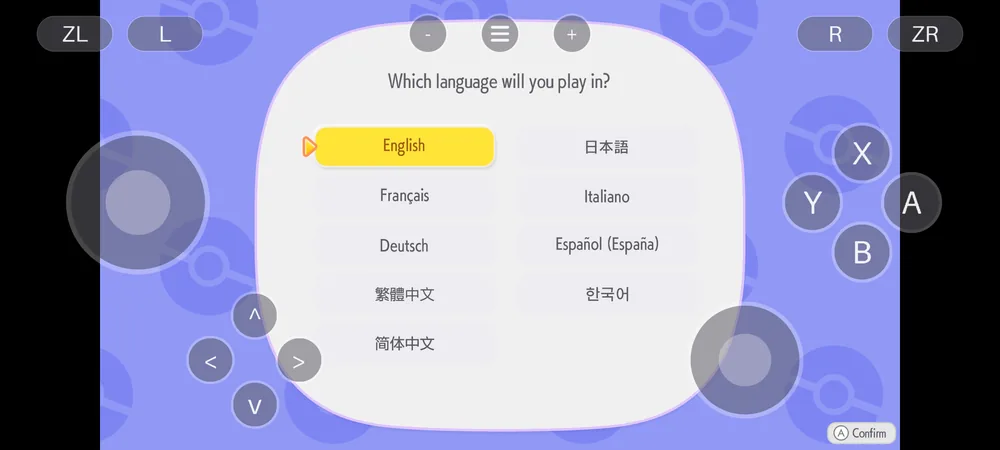
- A controller works too: a Bluetooth or USB controller, or a handheld's own buttons. While one is connected, the touch controls hide; they come back when it disconnects.
- Back (the back gesture or button) opens the settings, in three tabs: Graphics (resolution, frame rate, anti-aliasing, Wide view, which fills a phone's long screen instead of leaving bars at the sides, and the update check), Controls (a controller's buttons) and Link Play (below). Back again closes them.
- Leaving the app (Home, another app, a call) pauses the game; coming back carries on.
- Quitting: swipe the app away in your recent apps. The game saves by itself, as on the Switch (the save icon in a corner).
- Your character's name: a box with your phone's keyboard opens.
Your save
The Android page's Your save on the phone moves it, with the phone connected and unlocked:
- Bring a save, from a PC, a Mac or an iPhone: choose the save folder, one holding
B00,G00andS00(Saves shows where each device keeps it). Then swipe Pokopia Native away and open it again: it takes the save at that start. The save the phone had is kept beside it in the app's folder (save.before-<date>), not deleted. - Copy it here copies the phone's save to your PC. It lands in your build folder (
save-from-phone-<date>): a copy to keep, or to bring into the PC's game (Saves and DLC → Bring a save from another device).
For Link Play, each player needs a save of their own: the game refuses a second copy of the host's save.
Your DLC
If you bought the game's DLC, add it in the app first (Saves and DLC → Add my DLC, then choose the folder your dumping tool made from it: its RomFS). Install on my phone then copies it to the phone, and the game owns it from its next start. Only your own DLC, and never share it.
Link Play (co-op)
New in this beta, and not yet played between a phone and another device: please tell us how it goes. Link Play → Local connection in the game, with the Windows, Mac, iPhone and Linux games and other phones. Every device needs the same game version (1.0.5 or 2.0.1), a matching pokopia-native version (an Android app counts as the version of the download that built it, 1.5.0 or newer; Playing together has the rules) and its own save.
Set it up in the game: Back → Link Play → Change how you play.
- How to play: Alone; On this network (the same Wi-Fi) to host; Visit an address on this network (the phone doesn't find hosts by itself yet: the host's Link Play tab, or F1 → Link Play on a PC, shows the address to type); Host over the internet or a VPN; Visit a host over the internet or a VPN.
- Host's address and Room code: tap the row, type in the box that opens with your phone's keyboard (or paste), then OK.
- Interact everywhere and Story co-op (both experimental) as on the PC: every player needs them on.
- Press Apply. A change of address or room code applies at once while the game's Link Play is closed (leave Local connection first). Turning Link Play on or off, Interact everywhere and Story co-op apply from the next start: swipe the app away and open it again.
The tab then shows the addresses to give your friends, the room code with Copy and Copy invite (your address and code in one line, ready to paste in a chat), and who is connected.
- Hosting over the internet needs port 47600, TCP and UDP, to reach the phone. On Wi-Fi the game asks the router to forward it (UPnP, NAT-PMP or PCP) while you host. On mobile data nobody can reach a phone (the network blocks it): visit instead, or use a VPN such as Tailscale, which has an Android app, and give your friends the phone's address in the VPN.
- Some Wi-Fi networks keep devices apart (guest networks, many public ones): play on a home network.
After playing a while: refresh the graphics
The game makes some of its graphics while you play, and the phone can't prepare those itself: the first time you see them, parts of the picture can be missing. Your phone notes each one, and your PC prepares them:
- Connect the phone (unlocked) and, on the app's Android page, step 5, Later: refresh the graphics → Refresh. It usually takes a few minutes.
- Close Pokopia Native on the phone (swipe it away) and open it again.
Do it again after playing into new places. It only copies what's new.
Something wrong? Make a report
- Connect the phone (unlocked). The app has no button for the phone's report yet: double-click Pokopia Native Builder.cmd in your
Pokopia Native folder (the builder window of 1.4 and before, still in the download for this) and press Make a report, or from a
terminal in that folder:
runtime\python\python.exe nxs2.py android-report "<build folder>". - It makes one file,
pokopia-android-report-<date>.zip, in your build folder: the game's logs and facts about your phone (model, Android version, chip, memory, graphics driver), Android's own log lines from the app (and its crash record, if it closed by itself; nothing of other apps), how Android ended the game's last runs (for example to free memory) and your PC's build logs. It never includes your save, the game's files, the app, your key or pictures, and it leaves your name and folders out. Make it right after the problem: Android keeps its log only for a while. - Attach it to the Android beta report form, or post it in #bug-reports on the Discord with a few words on what happened. A screenshot or a short screen recording helps a lot.
A problem on the PC side (the build, Install) goes in the app's own report: Help → Report a problem → Build or update.
Updating
The app tells you when one is out. Once a day at most, when it starts, Pokopia Native asks GitHub for the list of this project's releases and looks for a newer Android beta. If there is one, a small card shows at the top of the screen for a moment: What's new opens its page, Later asks again the next day, Skip this version stays quiet about that one. The game never waits for it, and with no internet nothing shows. The request carries only what any web request carries (your phone's internet address and a line naming Pokopia Native and its version): nothing about you, your phone, the game or your save. To turn it off: Back → Graphics → Check for updates → Off.
The update itself comes from your PC:
- Update Pokopia Native on the PC: Update now in the app (the Windows guide), or download the new zip and unzip it into a new folder.
- In the app, Build → Android phone or handheld → Build for Android again, with the same build folder (it redoes only what changed), then Install on my phone.
Never uninstall the app to update it: uninstalling deletes your save.
Questions
The device test says my phone can't run it. The box says why. Most often it's the graphics: phones with a Snapdragon 865, 870, 855 or 765G (and older) don't work in this beta. Please paste the test's report in the Discord: it tells us which phones to work on next.
Build for Android stops: "Python's cryptography package is missing".
The Android app is signed with Python's cryptography package. If the download's own Python doesn't have it, install Python 3.12 or newer
from python.org (tick "Add python.exe to PATH"), open the Start menu, type cmd, press Enter, and paste py -3 -m pip install cryptography.
Then build from that Python, in your Pokopia Native folder: py -3 nxs2.py build "<your dump folder>" --android --out "<build folder>"
(the build folder is the app's Build → Game folder). The app's Install on my phone and Refresh work afterwards as usual.
Install says "no phone found". Check that the cable carries data (try another one), the phone is unlocked, and USB debugging is on (step 2). Some phones only connect after you pull down the notification shade, tap the USB notification and choose File transfer.
Install says the phone is asking whether to allow this PC, or the phone never asked "Allow USB debugging?". Unlock the phone and look for the question on its screen; tick Always allow and tap Allow. If it doesn't show, unplug and plug in the cable again. Still nothing: in Developer options, tap Revoke USB debugging authorizations, then plug in again.
"The phone refused apps from USB". On Xiaomi, Redmi and POCO phones, also turn on Install via USB in Developer options (the phone may ask you to sign in to your Xiaomi account). On other phones, look for a question on the phone's screen and allow it.
"Pokopia Native is installed already, signed with another key". An app from another build folder (or the device test, which Install normally replaces by itself) is installed. Uninstall Pokopia Native on the phone (long-press its icon → App info → Uninstall), then press Install again. Uninstalling deletes that app's save. Android leaves the game's files behind after an uninstall, in a state the new app can't use: Install clears them and copies them again (about 8 GB).
The app says "The game's files aren't on this phone yet" or "are incomplete". The app is installed but the game's files didn't finish copying. Connect the phone and press Install on my phone again: it copies only what's missing.
The game closes while starting, or after a while. Usually the phone ran out of memory. Close other apps (swipe them away) and try again; phones with 8 GB of memory are at the limit. If it keeps happening, make a report.
The screen stays black behind the touch controls. The game's graphics for its first screens aren't on the phone yet (the install prepares them, but not if the phone was locked then). Connect the phone, press Refresh, then close the game and open it again.
Parts of the picture are missing, white or flicker. Press Refresh (after playing a while). If something still looks wrong afterwards, a screenshot and a report help.
It's slow, or the phone gets hot. In the settings (Back), try Frame rate → 30 fps and a lower Resolution. Tell us your phone and how it ran: this beta is for finding that out.
Where is my save? Can I bring my save from the PC or another phone? The save is inside the app's folder on the phone. Bring a save and Copy it here on the app's Android page move it between the phone and your PC (Your save). Uninstalling the app deletes the save: copy it to your PC first.
Bring a save says it's done, but the game shows my old save. The game takes the save at its next start: swipe Pokopia Native away in your recent apps (not just Home), then open it again.
Do I need the PC to play? No. Only to install, refresh the graphics, update, and make reports.
Can I turn USB debugging off again? Yes, in Developer options, once the app is installed. Turn it on again when you want to refresh or update.
Is anything of the game sent anywhere? No. Everything stays on your PC and your phone. The report holds only logs and facts about your phone. The app goes on the internet only to ask GitHub, once a day, whether a newer version is out (see Updating; Back → Graphics → Check for updates turns it off), and for Link Play when you turn it on, which talks only to the other players' devices.
Why does the app have the internet permission? For Link Play, and for that once-a-day update check. Android grants it at install without asking; you can see it in the app's info. There is no Pokopia Native server: Link Play talks only to the other players' devices, and nothing is sent about you or your phone.
For the curious (and the command line)
The app's buttons run these commands in your Pokopia Native folder (python is the download's own runtime\python\python.exe):
| Button | Command |
|---|---|
| Build for Android | python nxs2.py build <your dump folder> --android --out <build folder> |
| Install on my phone | python nxs2.py android-install <build folder> |
| Refresh | python nxs2.py android-refresh <build folder> |
| Bring a save | python nxs2.py android-import-save <build folder> <save folder> |
| Copy it here | python nxs2.py android-export-save <build folder> |
| Add my DLC (Saves and DLC) | python nxs2.py import-dlc <build folder> <your DLC's folder> |
| The phone's report (the builder's Make a report) | python nxs2.py android-report <build folder> |
The app is out\Pokopia <version> for Android.apk in your build folder; the game's files go into Android/data/io.github.xfractals.pokopianative/files
on the phone, where the app also keeps its logs (logs), your save (save) and its settings (settings).